


Question:
How do I create File Connections in DocuWare versions 7.14 and higher?
Answer:
Comencing in DocuWare version 7.14, the File Connections configuration has been moved and is now web-based with a modernized interface and reduced complexity.
The new File Connections plugin presents all former features, including a new option to upload your CSV files directly from your local system by selecting it from a specific location or by dragging it into the upload area.
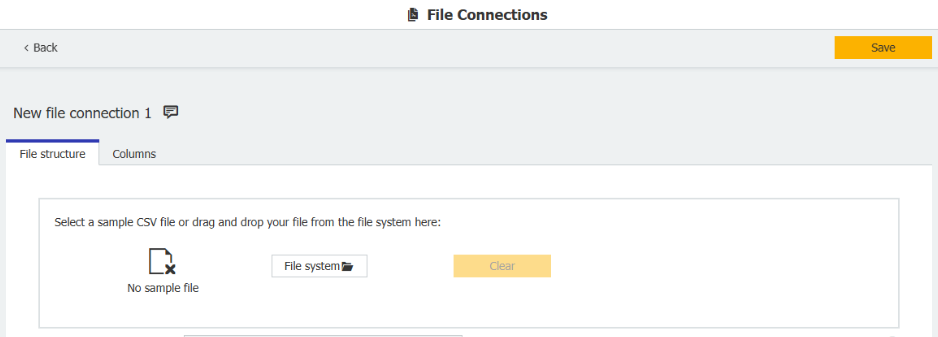
The File Connections configuration is split into two different sections:
File structure, where the user can configure everything related to the file:
File Name: This field shows the file containing the configuration data. This could be a file containing customer information. Click the drop-down to select a file from your storage location.
Storage Location: This displays the storage locations previously created in DocuWare Administration, at the system level, under the storage locations node. If multiple storage locations have been set up, you can select one from the list on the right-hand side. If no storage location has been set up yet, it is not possible to create a file connection. If that is the case, reach out to your DocuWare Administrator.
Encoding Type: This entry specifies the code page used by the file. When you click the drop-down menu, you can select the code page. The contents of this menu depend on your computer's regional settings.
File Type: Here you can select the type of file you want to further configure, either delimited by a specific character or with a fixed width.
Delimiter: A delimiter separates one entry of a record from the next, or an entry being used for index enhancement from the next. You can either select one from the dropdown or choose a personalized one by inserting it in the empty text box.
Text Indicator: The character selected here denotes a text to be extracted for the index enhancement. All the information enclosed in the character selected here will be identified as relevant text for the extraction. Delimiters within text indicators are ignored and not considered indicators.
Row number of column header: This indicates the row number that contains the column name. If 0 is entered here, the system assumes that no information is available via this column name.
Start extraction at row: This entry specifies which row contains the information to be used for index enhancement. Which row is entered here depends on the structure of the example file or of the file from which the information will be read.
Columns: this is where the user can add or remove columns from the selected CSV file, further configure all fields, name them, and choose preferred column types (text, numeric, date). There are also more complex formatting options for these types. The changes made by the user will be reflected in the Preview section.
Please note that for files uploaded from the local system, the user must first save the changes to see the Preview.
To ensure good performance across the configuration, File Connections has a number of limitations that are important to note.
Allowed file formats:
-
"txt"
-
"csv"
-
“tsv”
Maximum allowed size for file upload:
- Four Gigabytes
A file connection cannot be saved with:
-
Empty file name
-
White space name
-
Name longer than 50 characters
-
Empty column name
-
Max interpret year > 9999 (for four digit year formats)
-
Min interpret year < 0 (for two digit year formats)
-
Multiple columns with the same name
For delimited columns:
-
Custom delimiter longer than 999 characters
-
Custom text indicator longer than 1000 characters
For fixed-width columns:
-
Column definitions longer than 999 characters
-
Column definitions with less than one character
-
Start Extraction bigger than 999
-
Row Number of column header greater than 999 characters
For columns with custom date formats, some invalid formats are not allowed, such as:
-
Switched minutes with months (mm with M)
-
Invalid characters in the formats
-
Formats of the type ffffffff, very long fractions of seconds with > 7f characters
KBA is applicable to both Cloud and On-premise organizations.