


Question:
How can I import PDF documents into DocuWare using storageRobot when the index values are provided in a separate XML file?
Answer:
To set up a process to import PDF documents with Index files, refer to the following steps:
-
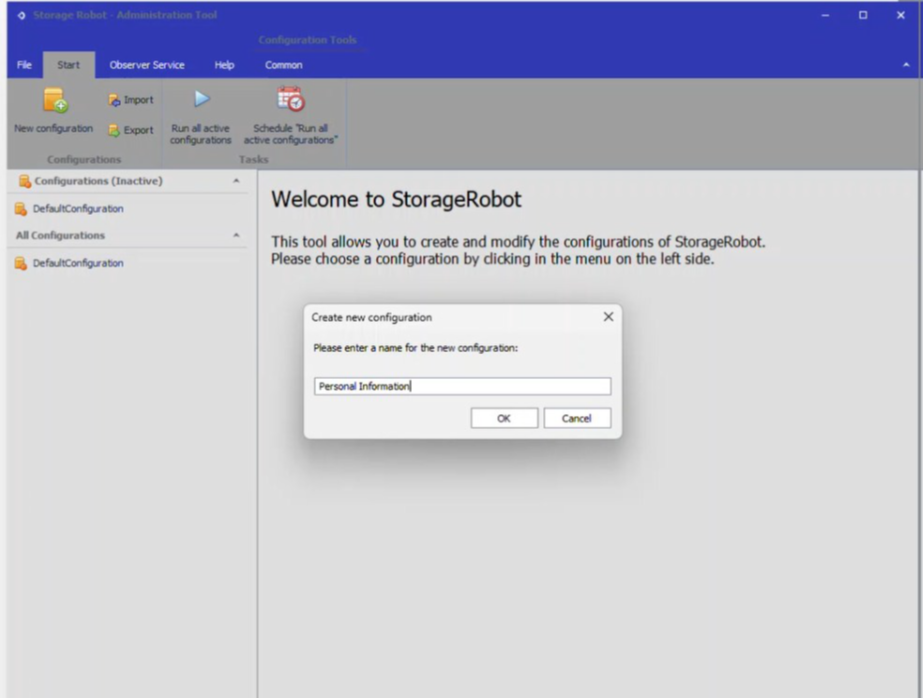
Open the storageRobot tool, create a new configuration, name it, then select OK.
-
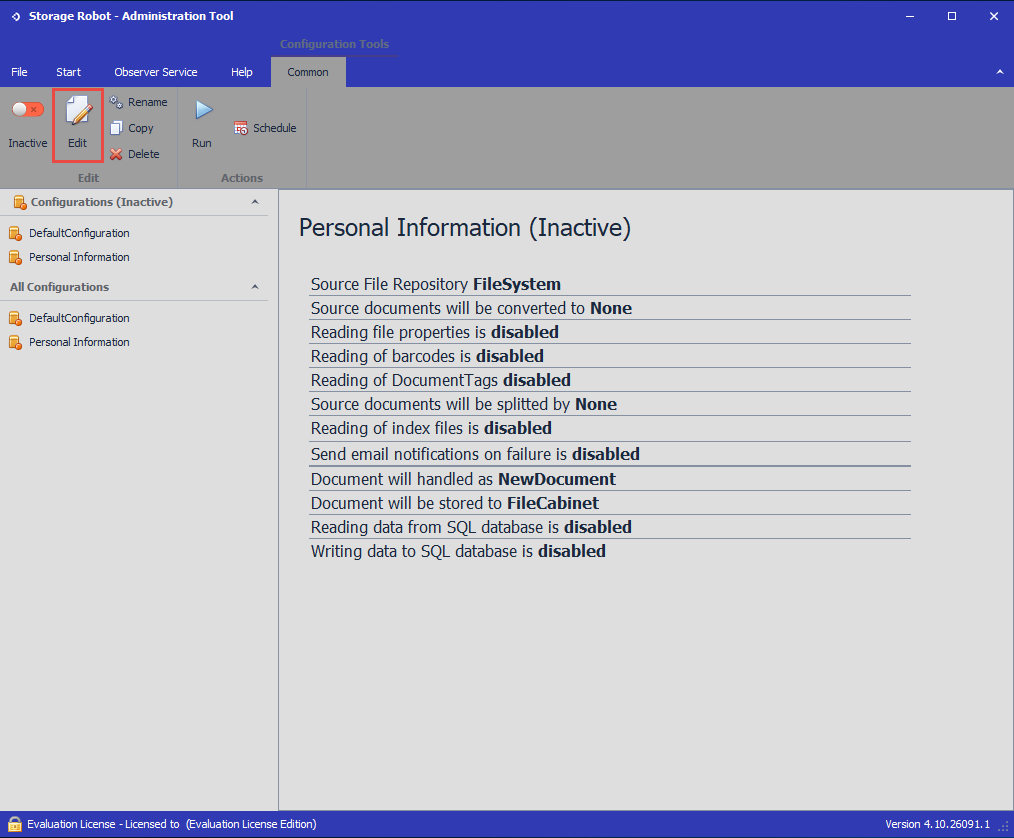
Select the configuration you just created and select Edit.
-
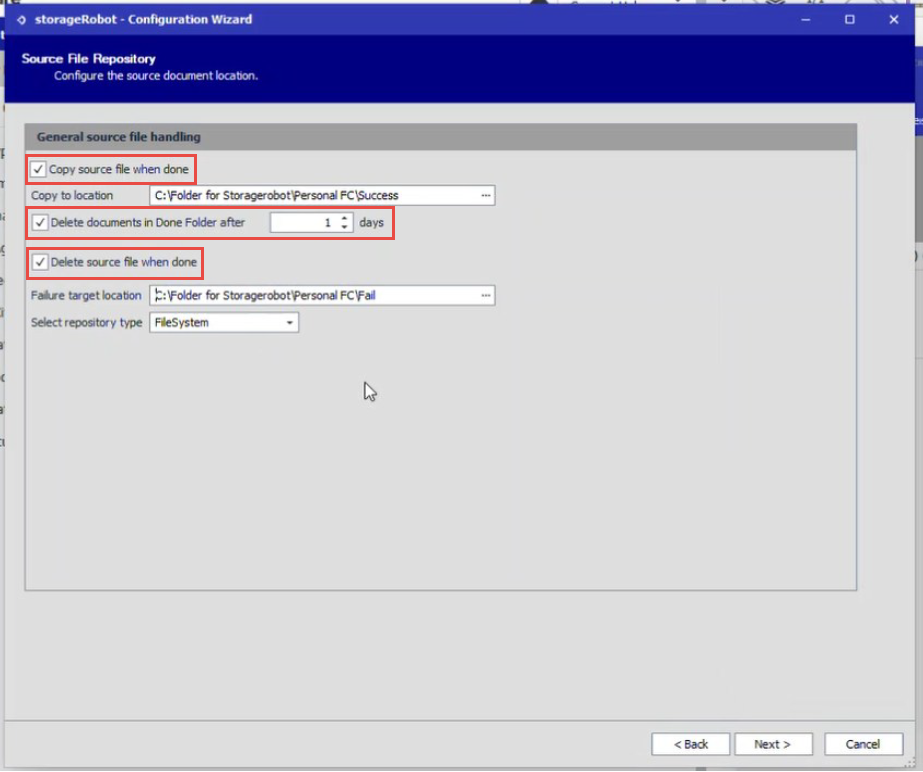
Enable Copy source file when done as required and configure the success and fail target folders. If you enable the option to Delete documents in Done Folder after (x) days, you can specify the number of days in which the documents are retained after they are successfully imported. Additonally you can choose the option to delete the source file when done.
-
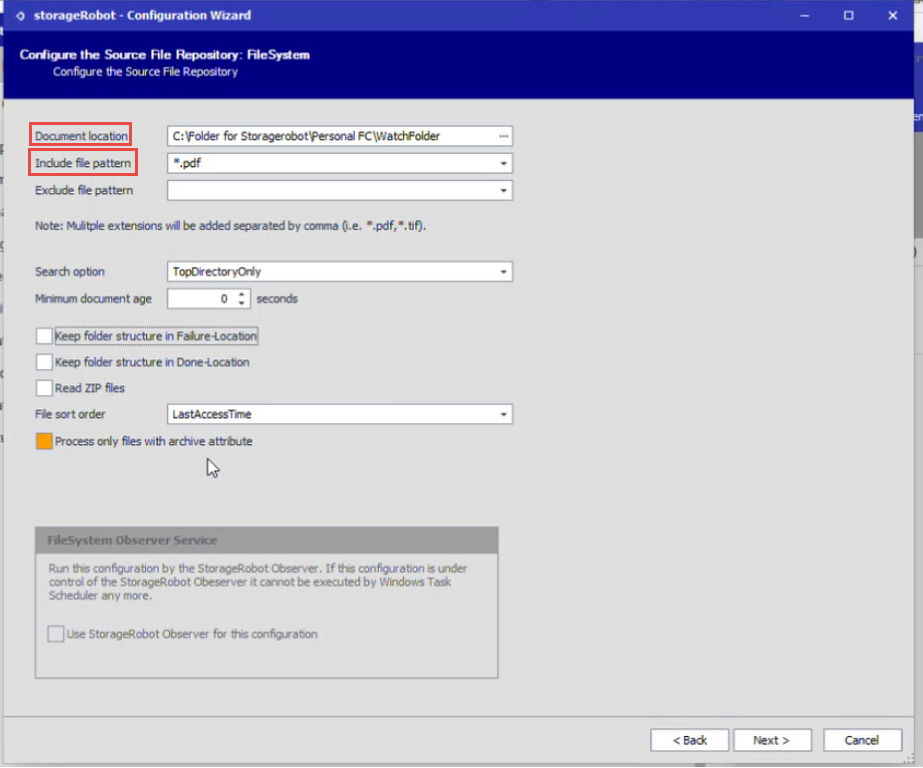
Select the Document location of your Watch folder and your choosen file pattern. In this example the file pattern is set to .pdf file types.
-
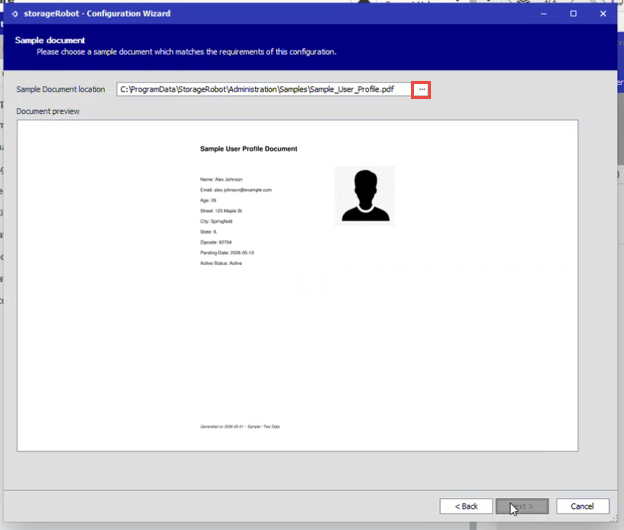
Next, choose your configuration's sample document by selecting the ellipsis and choosing the document file in your system.
-
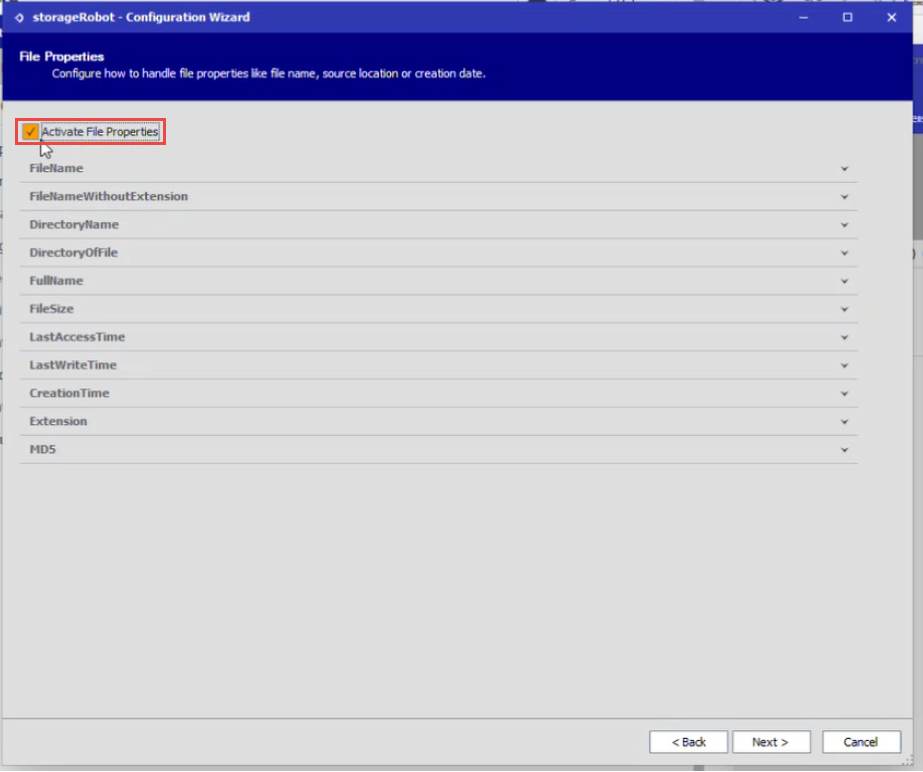
Click next until you reach File Properties, then select Activate File Properties if you require index values like file name, extensions, etc.
-
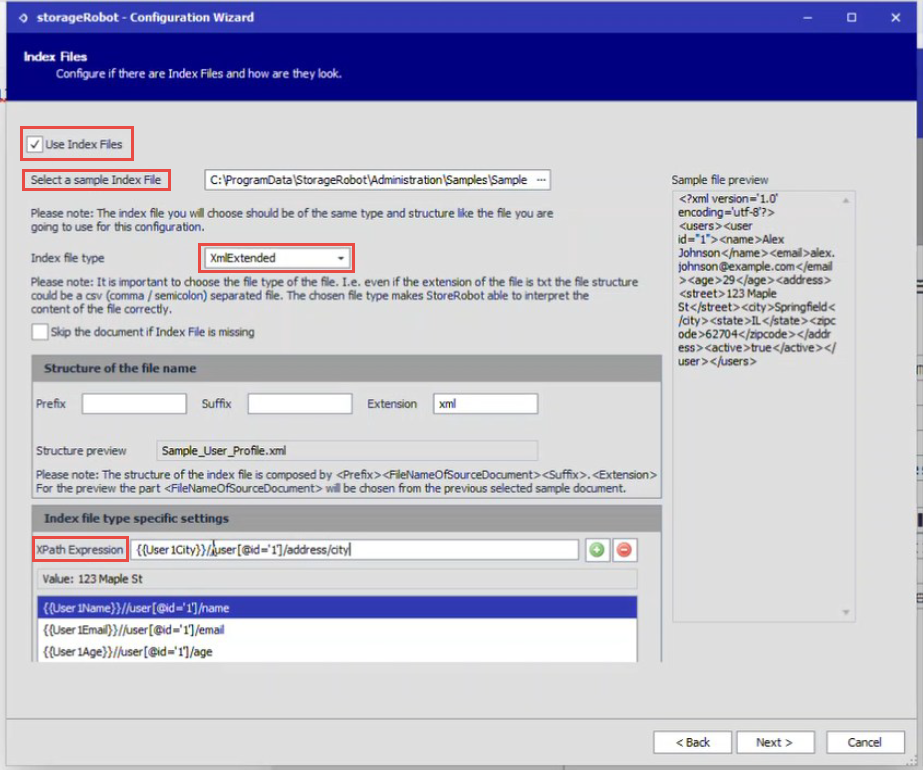
Click next until you reach the Index Files configurations portion, enable Use Index Files, then Select a sample Index File. For the Index file type, select XmlExtended, you will then see a preview of your XML file on the right.
Next you will need to add the XPath Expression in the xml file. Please refer to the following KBA on how to create an XPath Expression: KBA-38071.
-
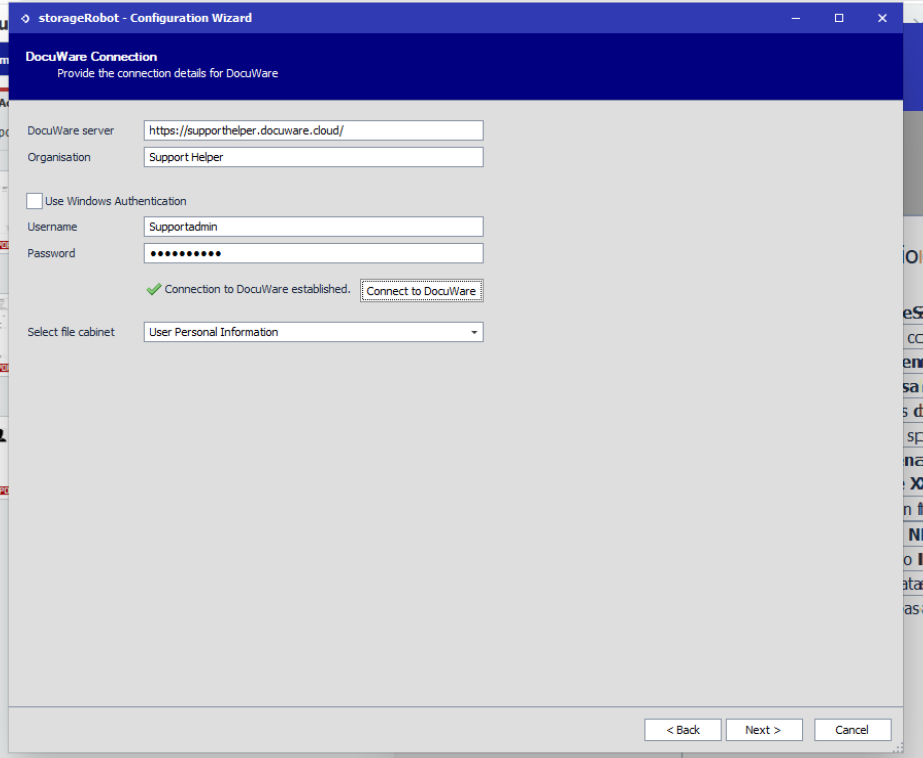
Continue clicking next until you reach DocuWare Connection. Input your DocuWare URL and Organisation name, username, password, and select the file cabinet to map.
-
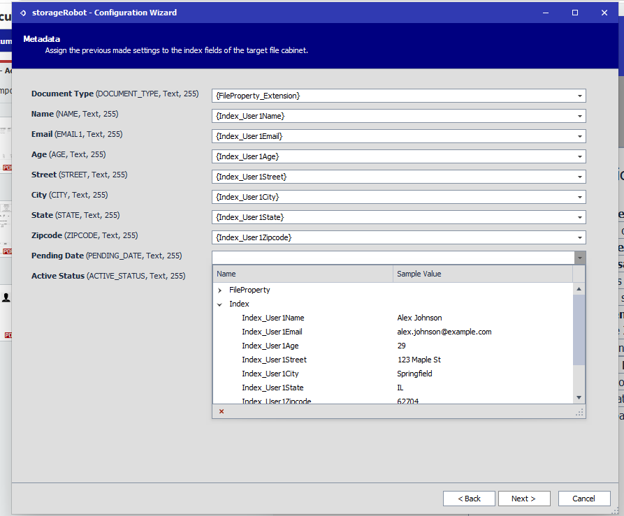
Click next until you reach Metadata. Using the dropdown for each field select from where you need to read the values from
-
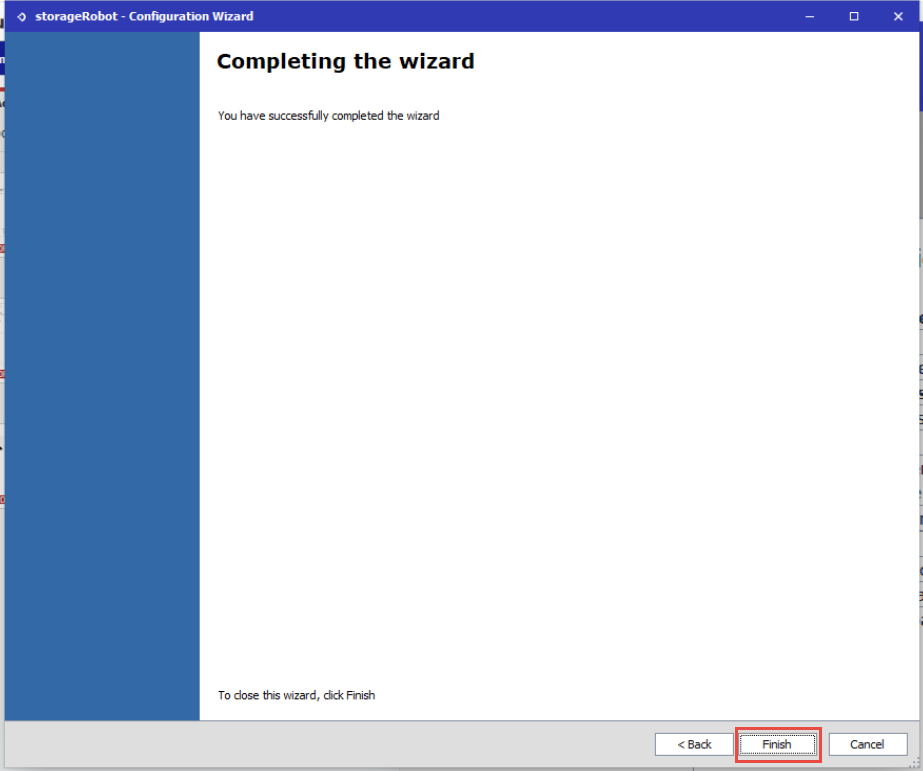
Click next until you reach the end of the setup process then select Finish.
-
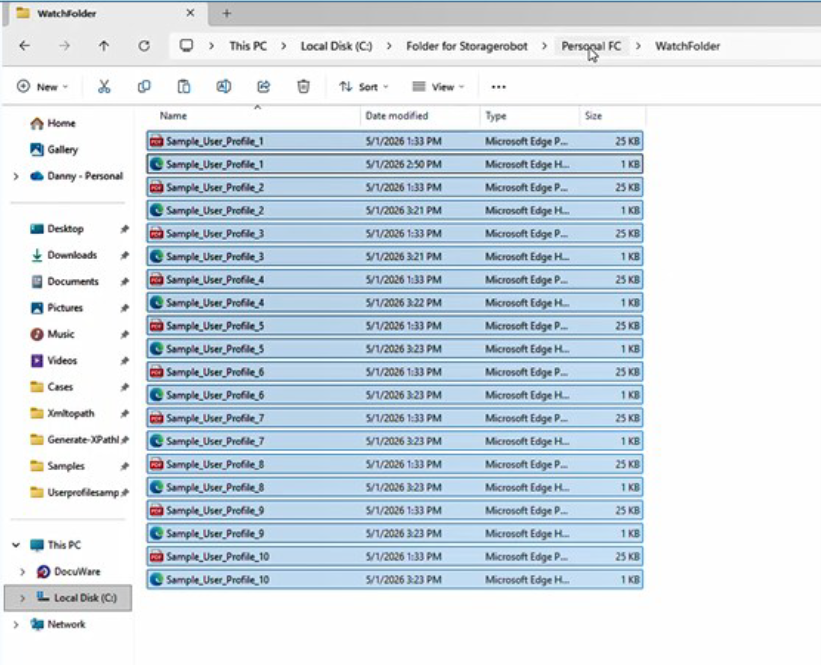
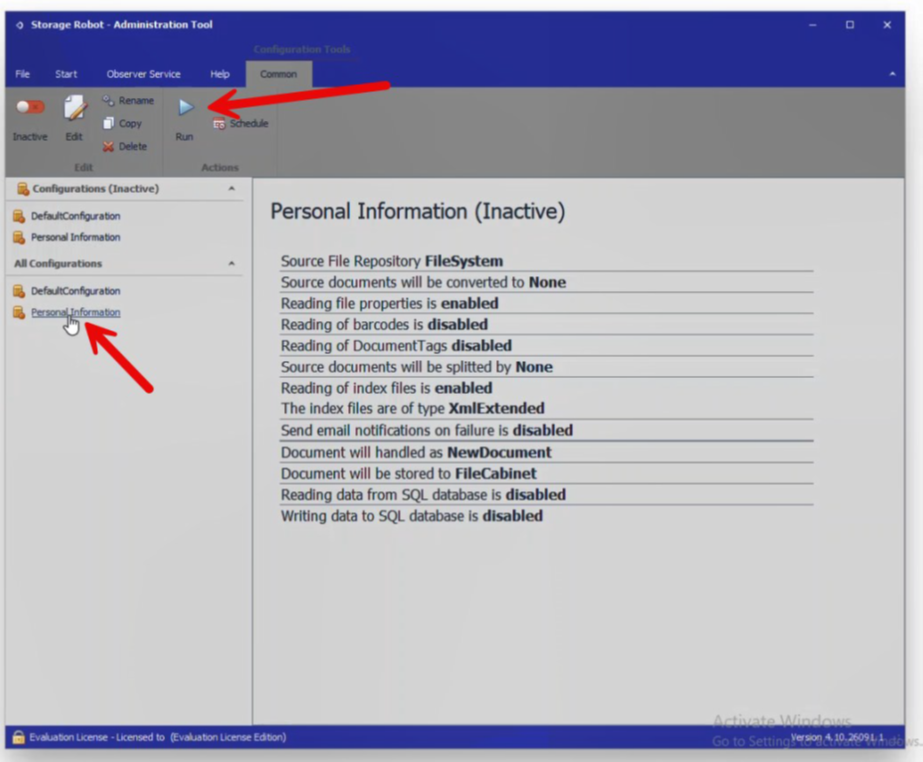
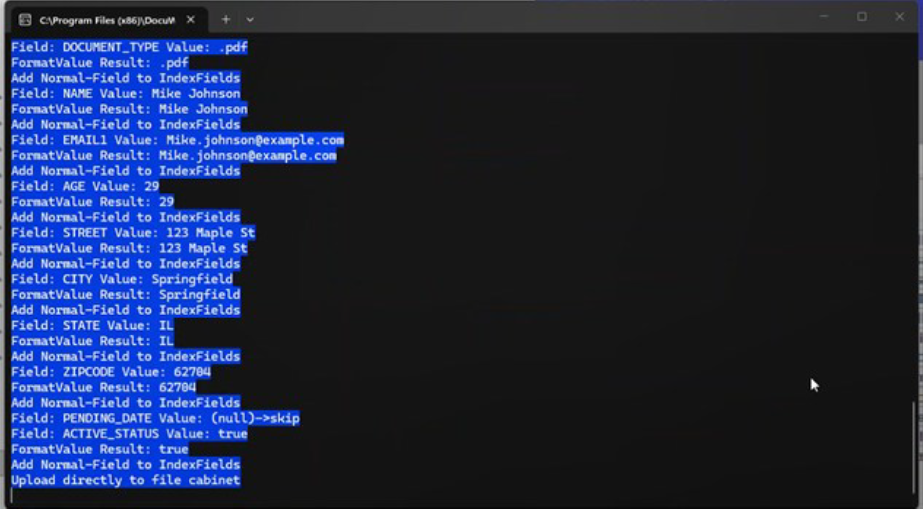
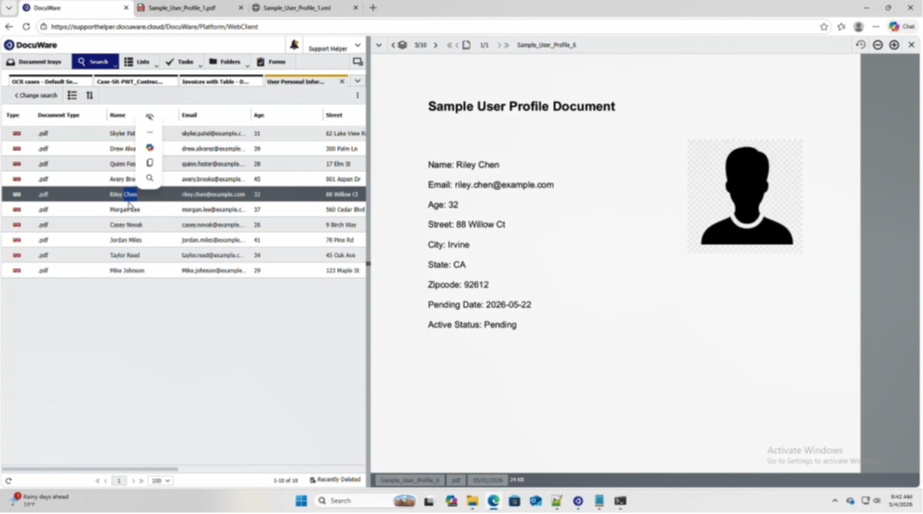
Now move your files (pdf files and match xml files) to the watch folder then click Run on your configuration in storageRobot. After running the configuration, a Command Prompt window will briefly appear showing the progress of the import. Once complete, you'll find your documents in your DocuWare system.
KBA applicable for both Cloud and On-premise Organizations.