


Question:
How do I change the default retention days of the document history in DocuWare Desktop apps?
Answer:
By default, the DocuWare Desktop Apps history is kept for seven days, including files that trigger a warning or error. If you need to modify how long these files are kept, there are three keys you can set to your preferred duration.
-
Open the DesktopService.exe.config file in an editing program such as Notepad. This file is located in C:\Program Files (x86)\DocuWare\Desktop\DocuWare.DesktopService.exe.config.

To change the behavior, you will need to adjust the settings for the three keys shown below. Included is a description of each key's purpose.
RemoveTempFile - Determines which files are kept in the job folder.
JobCleaningAfterDays - Determines how long this file will remain in the job folder. The default value is seven days.
HistoryLifetimeInDays - Determines how long the history is kept in the desktop apps' history section.
Below are possible inputs to adjust and its purpose for each key's value.
KeepErrorAndWarning - This is the default value.
Always - No file will be saved in the job folder.
Never - Will keep a copy of all documents imported.
KeepError - Will keep a copy of the file that triggers an error message.
-
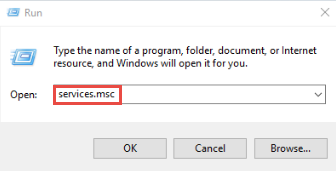
After implementing the changes, open the Run program and type the services.msc command to launch the Services application.
-
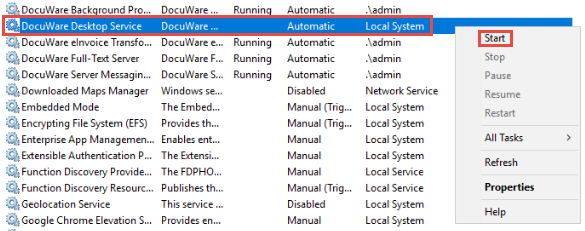
In Services, right-click on DocuWare Desktop Service and select Stop, then Start to "restart the service".
KBA applicable for both Cloud and On-premise Organizations.