


Overview:
The Security plugin can be accessed via the DocuWare Configurations page. Organizations can now manage all organization-wide security settings within one component.
Note: An Organization Administrator role is required for accessing this feature.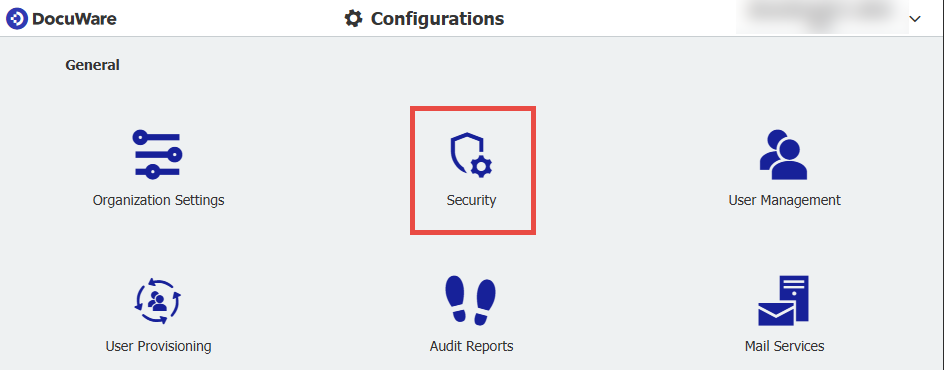
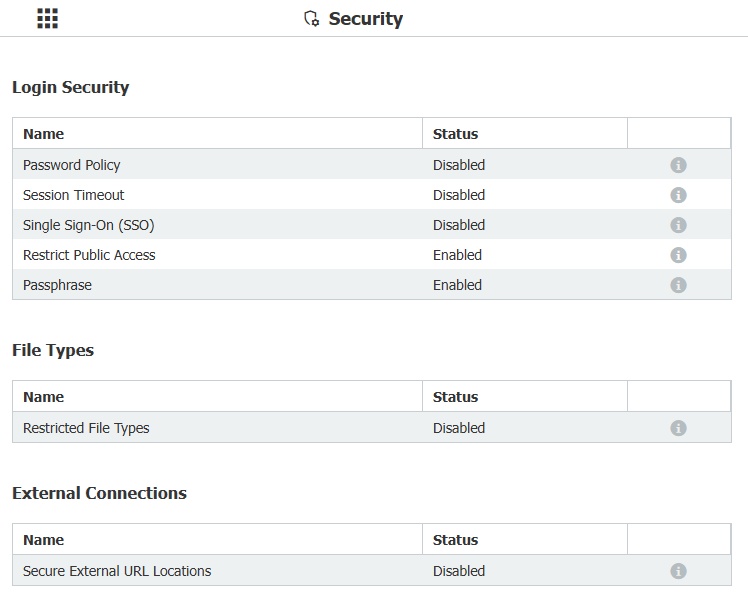
Login Security
Password Policy:
Enable this option if you are looking to enforce a password policy for all DocuWare users passwords. To set security requirements for passwords such as minimum length or complexity, it must be enabled by checking Enforce for DocuWare passwords.
From here, there are options for password requirements and fraud prevention. These can adjusted to your organizations needs. For further information on the password policy plugin, please refer to KBA-37820.
Session Timeout:
For security purposes, a time of inactivity can be defined resulting in logging out the user automatically. Once enabled, select your organizations desired logout time from the list of available options. For further information on Session Timeout, please refer to KBA-37879.
Single Sign-On (SSO):
You can enable and configure a single sign-on connection with your identity provider to enable your users to access DocuWare with the same set of credentials which they use to log into other applications. Supported Identity providers include but are not limited to, i.e. Okta, Microsoft Entra ID, Microsoft Active Directory Federation Services, and Generic OpenID Connect Provider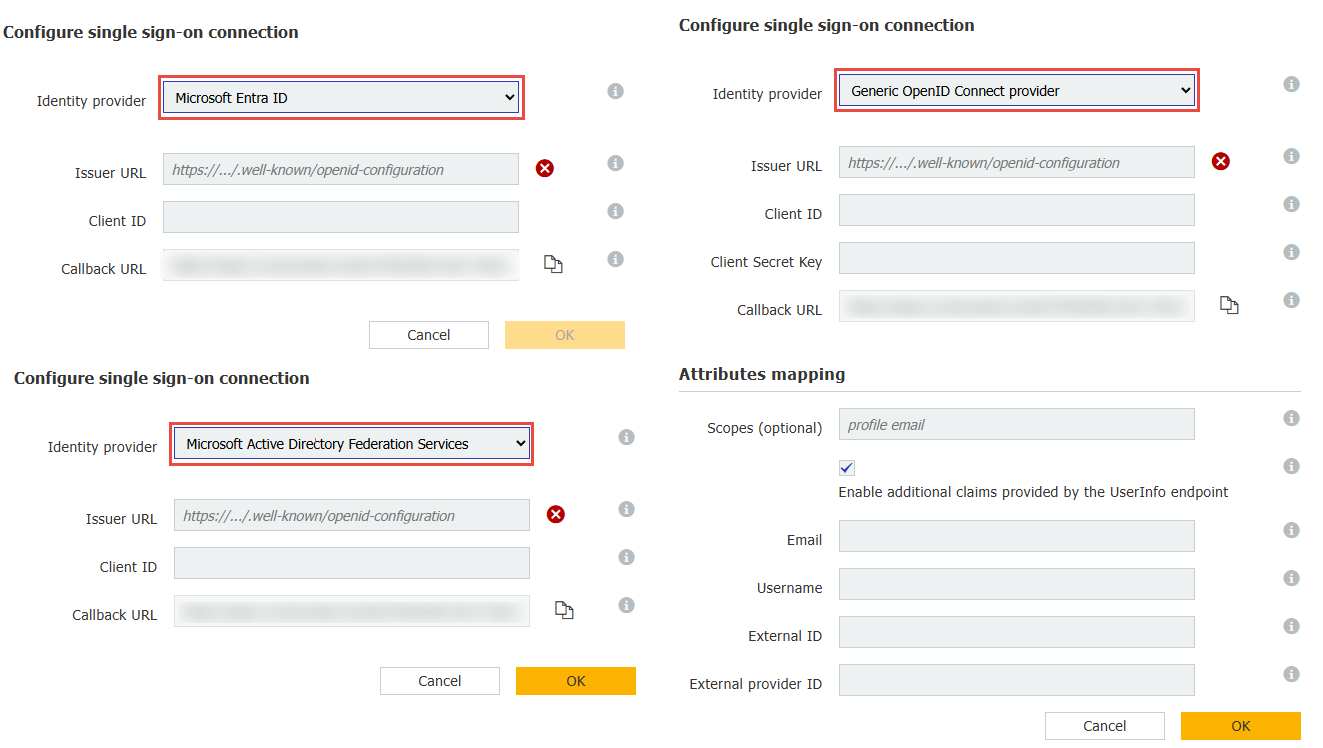
For further information on SSO, refer to KBA-36308 and DocuWare's Knowledgebase site.
Restrict Public Access:
Commencing in DocuWare 7.12, the ability to Enable log in as a guest with a predefined DocuWare user and Guest login has been renamed to Restrict Public Access. Public access is restricted when log in as a guest on the login page is not allowed. With the guest login, a user can access DocuWare without entering login credentials. The rights assigned to the guest user correspond to the rights of the DocuWare user selected as the guest user. This option is enabled by default. 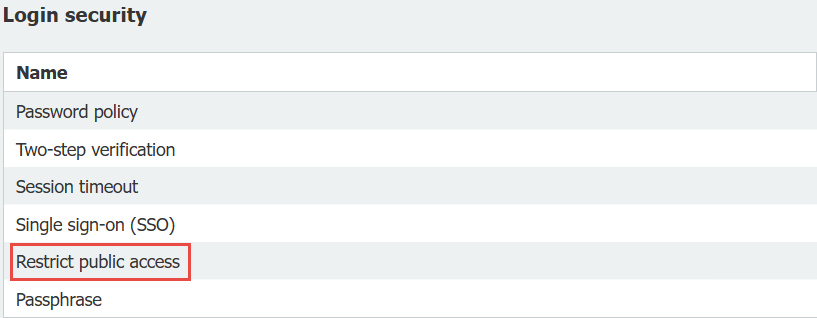
Deactivate this option to remove restriction of public access and allow log in as a guest on the login page. With the guest login, a user can access DocuWare without entering login credentials. The rights assigned to the guest user correspond to the rights of the DocuWare user selected as the guest user. To set a guest user or change an existing one, click Change User.
Note: Disabling this functionality poses a security risk and should be used carefully.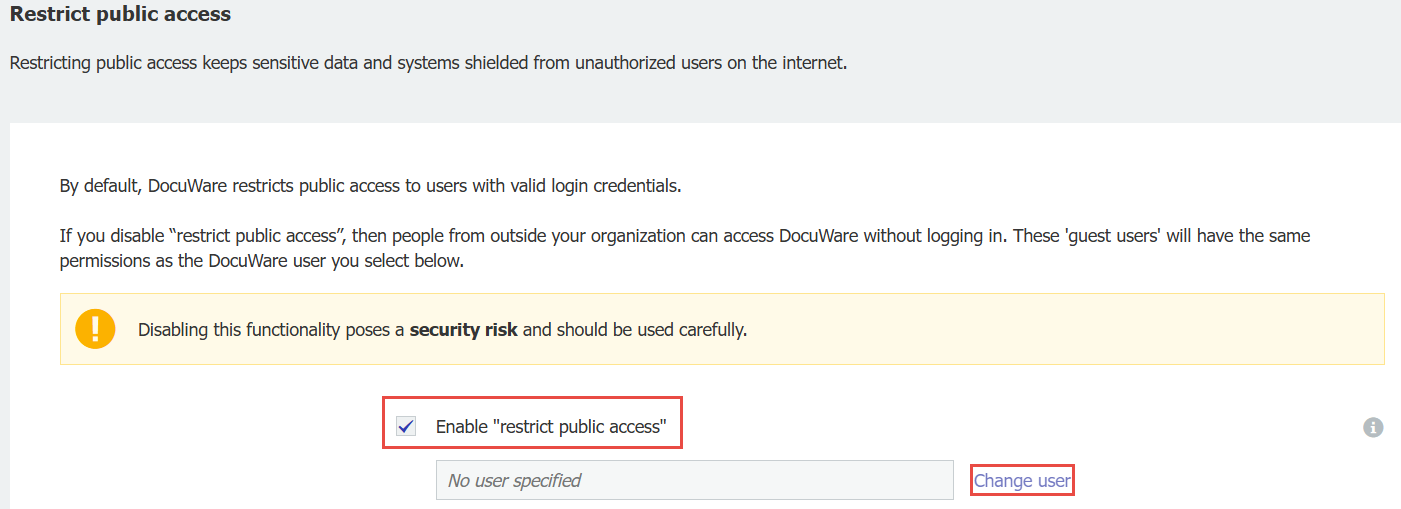
Passphrase:
If necessary for security reasons, the Web Client can be accessed via an encrypted URL. To work with an encrypted URL a passphrase must be entered here. An encrypted URL is required for automatic login to the Web Client via URL, as this URL must contain the user name and password.
The passphrase is used to create a symmetrical key pair for the encryption and decryption of the URL. In order to enter a passphrase or to change (or delete) an existing one, click on Change passphrase. The passphrase must be between 12 and 16 characters long.
For information on how to enable the Passphrase option, please refer to KBA-37810
File Types
Restricted File Types:
Select and define file type lists with specific file name extensions to prevent these files from being stored in file cabinets or document trays.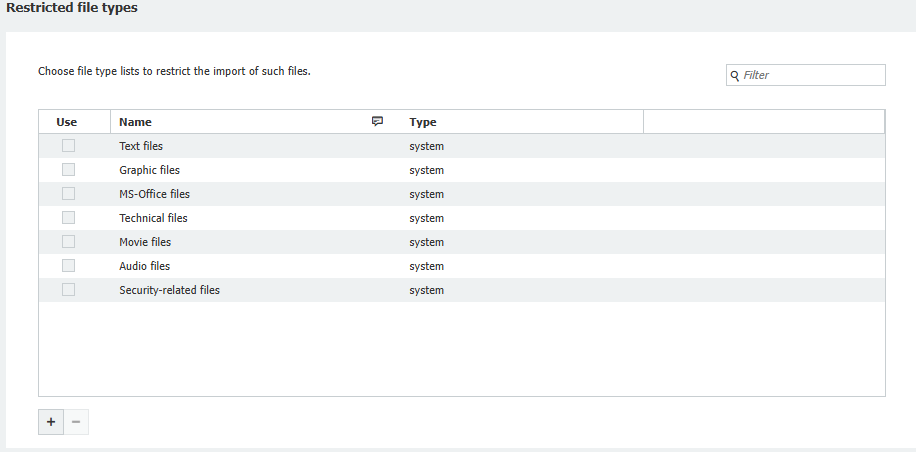
For further information on this option, please refer to KBA-37828
External Connections
Secure External URL Connections:
In this setting, hyperlinks are safe if they are directed to a location that has been defined as safe in a whitelist.
New Options in 7.13+
Commencing in 7.13, the following options have been added to the Security Configuration:
On-Premises & Cloud:
- Two-Step Verification (within Login Security section)
- For information on how to configure Two-step verification, please refer to KBA-38003
Cloud ONLY:
- Portal Integration (within External Connections section)
- IP-based access control (within External Connections section)
- For further information on this, please refer to KBA-38004, or our Knowledge Center
KBA is applicable to both Cloud and On-premise Organizations.