


Question:
How to configure a policy for failed login attempts?
Answer:
Commencing in DocuWare Version 7.4, you are able to configure how many login attempts a user can attempt before being locked out. However, in version 7.12, the location of this has changed. You can configure this by completing the following steps:
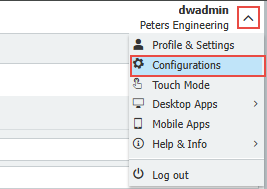
1. In the web client, click the dropdown in the top-right corner, and select Configurations.
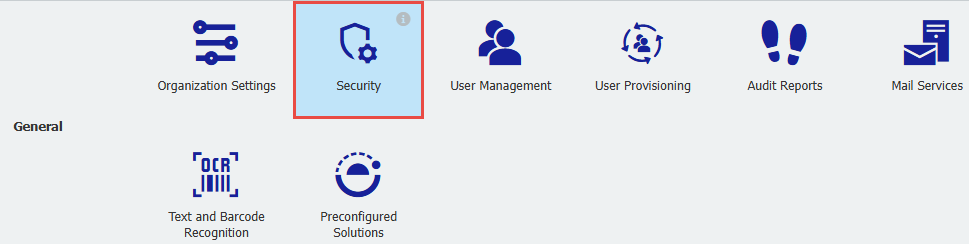
2. Click on the Security plugin:
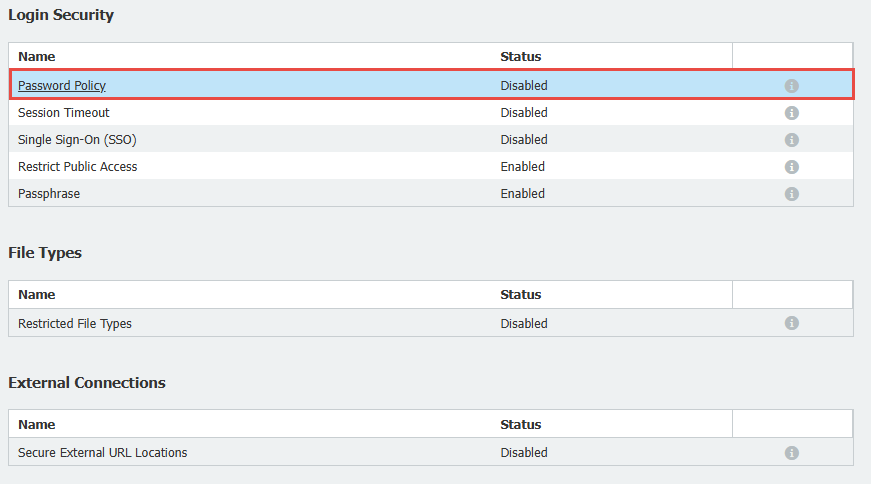
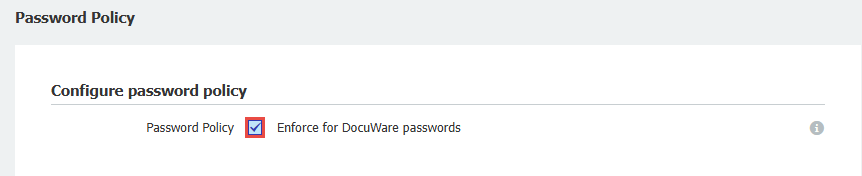
3. Select Password Policy, then, check the checkbox Enforce for DocuWare passwords, to enable the password policy:
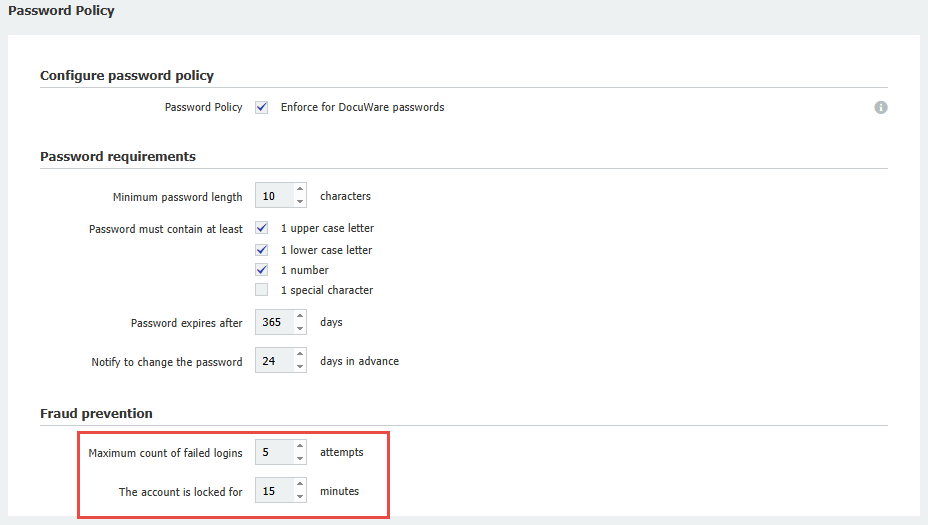
4. The following page will contain 2 sections, Password requirements and Fraud Prevention. Here you can adjust the following:
- Minimum password length or force the password to meet complex rules, such as containing an uppercase letter or a special character.
- Set an expiration period for the password and set a reminder to notify the user to change their password.
- Configure maximum failed login attempts before an account is locked, and how long the account is locked for.
5. From here, scroll to the Fraud prevention section where you can adjust the Maximum count of failed logins (Default: 5 attempts) and how long The account is locked for (The Default time is 15 minutes):
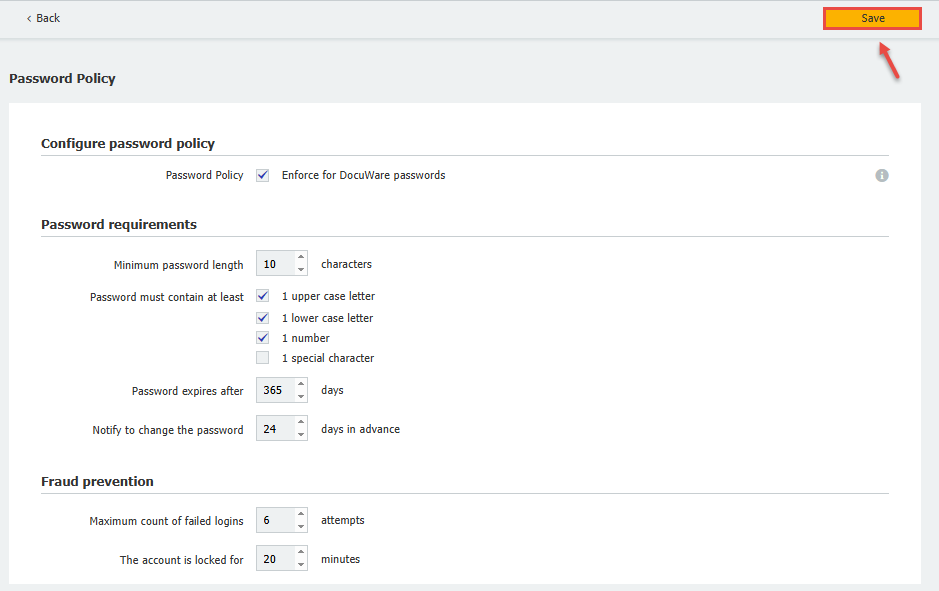
6. Once you have adjusted these values to best fit the needs of your organization, click Save in the top-right corner:
KBA is applicable for both Cloud and On-premise Organizations.