


Question:
How do I connect DocuWare API Key and Power Automate?
Solution:
The DocuWare iPaaS connector provides a set of important DocuWare functions. On Power Automate, features such as store to file cabinet or inbox, stamps, searching, etc. can be assembled in various scenarios.
For example, an external application such as Microsoft OneDrive is used to store files from another program. These files are to be automatically stored in DocuWare. The corresponding scenario regularly checks for new files, automatically imports them into a file cabinet, and provides them with index data.
To connect DocuWare and Power Automate, create an API key and use this key in Power Automate to create a connection to DocuWare. This connection will then be available in the DocuWare Power Automate connector.
Create an API key in DocuWare
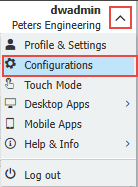
In the web client, click the dropdown in the top-right corner, and select Configurations.
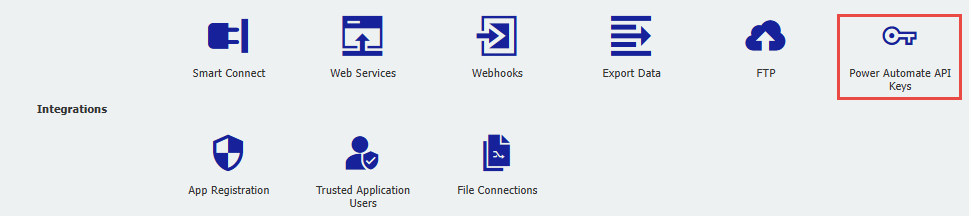
In DocuWare Configurations, go to the Integrations section and select the Power Automate API Keys plugin.
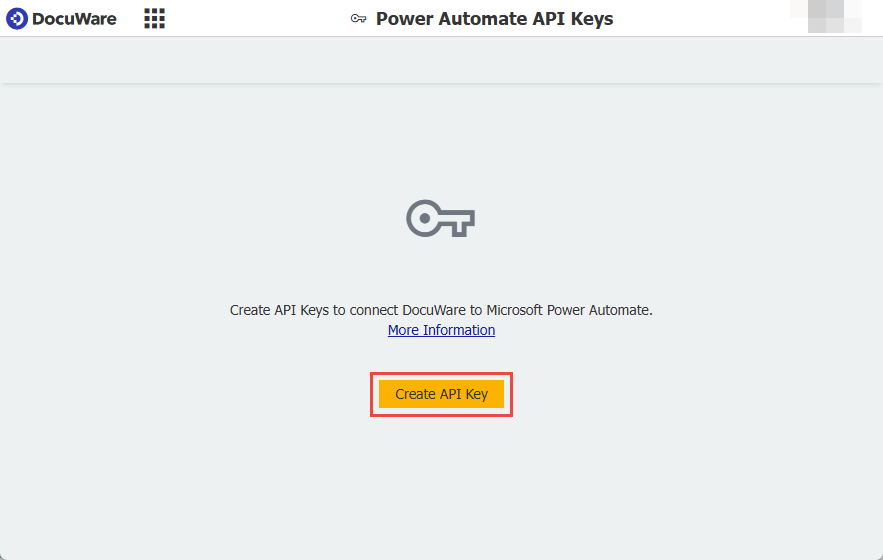
NOTE: If you do not see the Power Automate API Keys plug-in, the DocuWare user you are logged in as does not have sufficient permissions. In this case, contact your DocuWare administrator to recieve the credentials to use Power Automate API Keys.Click Create API Key.
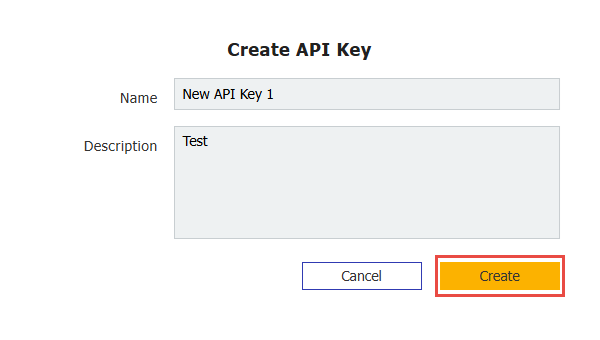
Name your key and add a description, then select Create. The creation of the key may take a short time.
Note: Be sure to save your API key. If you lose this key, you will need to create a new one.
How to add DocuWare API key in Power Automate
Log into your Power Automate account.
Create a new flow or open up an existing flow.
Add an activity from the DocuWare Power Automate connector to your flow.
Click the + button to add a new step.
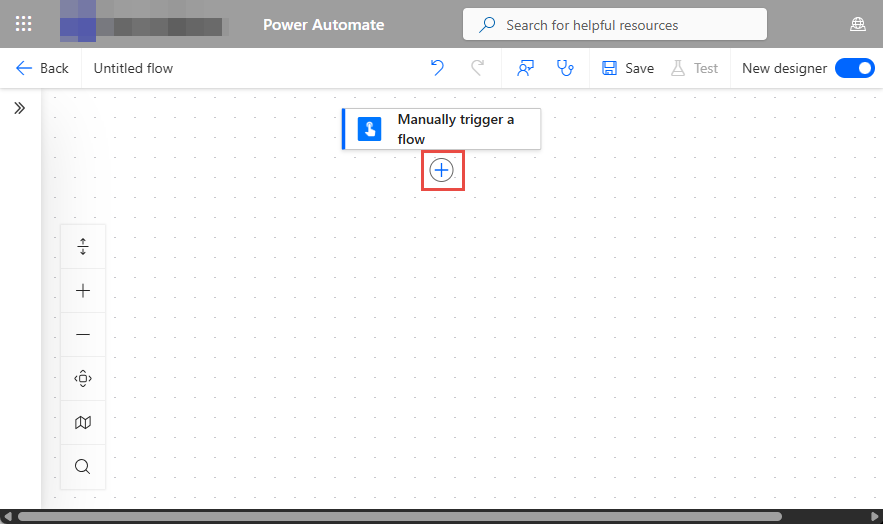
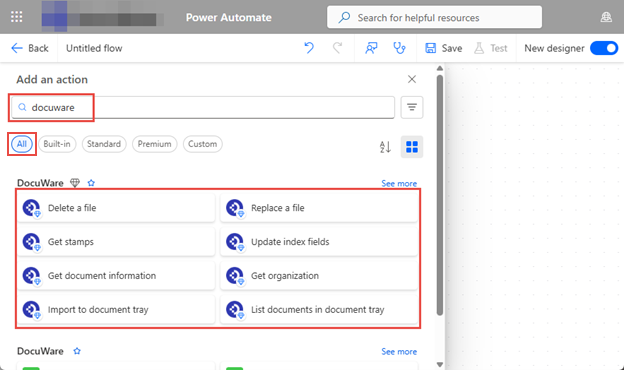
When prompted to choose an action, select All from the category selection. Then type DocuWare in the search field then select an option from the list.
When the selected action is added to the flow, you will be prompted to create a new connection.
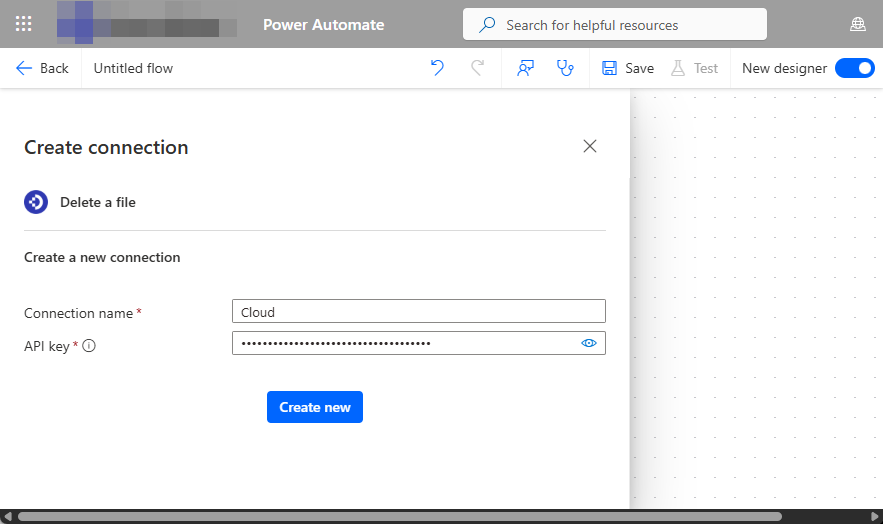
Enter a connection name and the API key that you received from DocuWare, then select Create New.
All activities that are added in the DocuWare connector will now use this connection.
You can also create additional connections by clicking Change Connection at the bottom of an activity. Select Add new, you will then be prompted to create a new connection.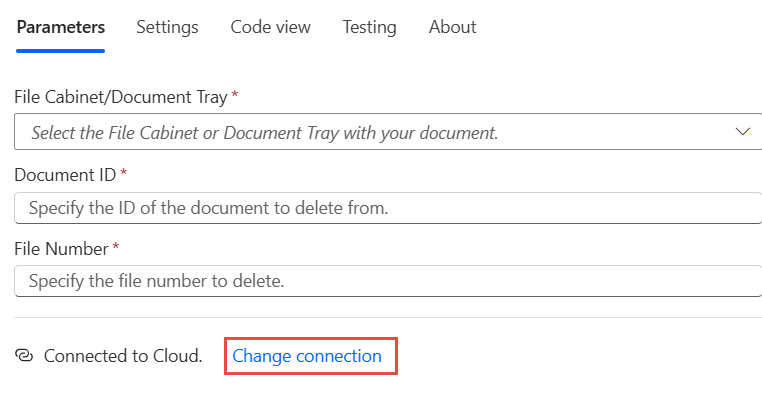

You can check the status of the Power Automate Key in Power Automate API Keys plug-in.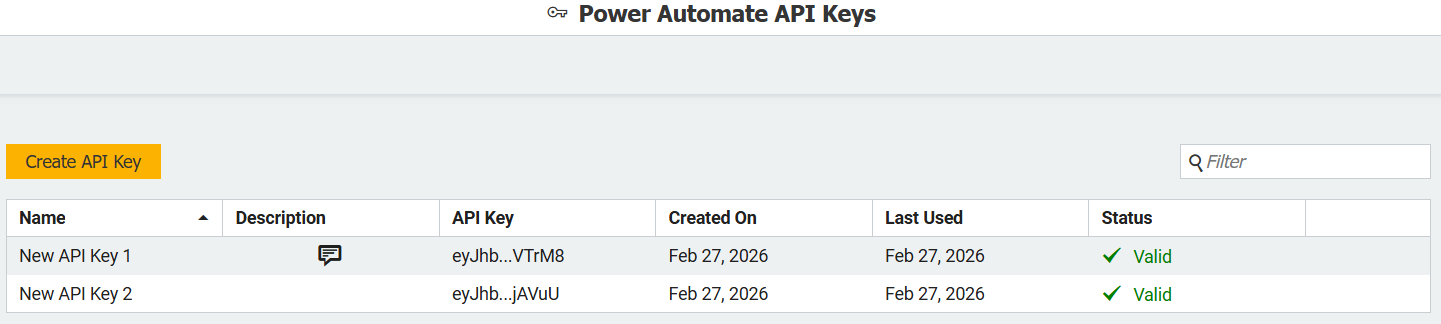
For more information on Power Automate integrations, prerequisites, and DocuWare actions available on Power Automate, please see the following Knowledge Center article: https://knowledgecenter.docuware.com/docs/connector-power-automate
This KBA is applicable to Cloud organizations ONLY!