


Question:
How can we get a list of all active and inactive user accounts within our DocuWare system?
How can we get a list of all active and inactive user accounts within our DocuWare system?
Answer:
To obtain a list of all active and inactive user accounts, please refer to the following guide;
For DocuWare versions 7.11 and below:
To obtain a list of all active and inactive user accounts, please refer to the following guide;
For DocuWare versions 7.11 and below:
- Log into DocuWare as an Administrator and open a new tab using the following URL: "https:// {{Server Name}} /DocuWare/Platform/Organization/Users"

- Once you reach this page, right-click on the web page, select "Save As," and save it as an XML file.
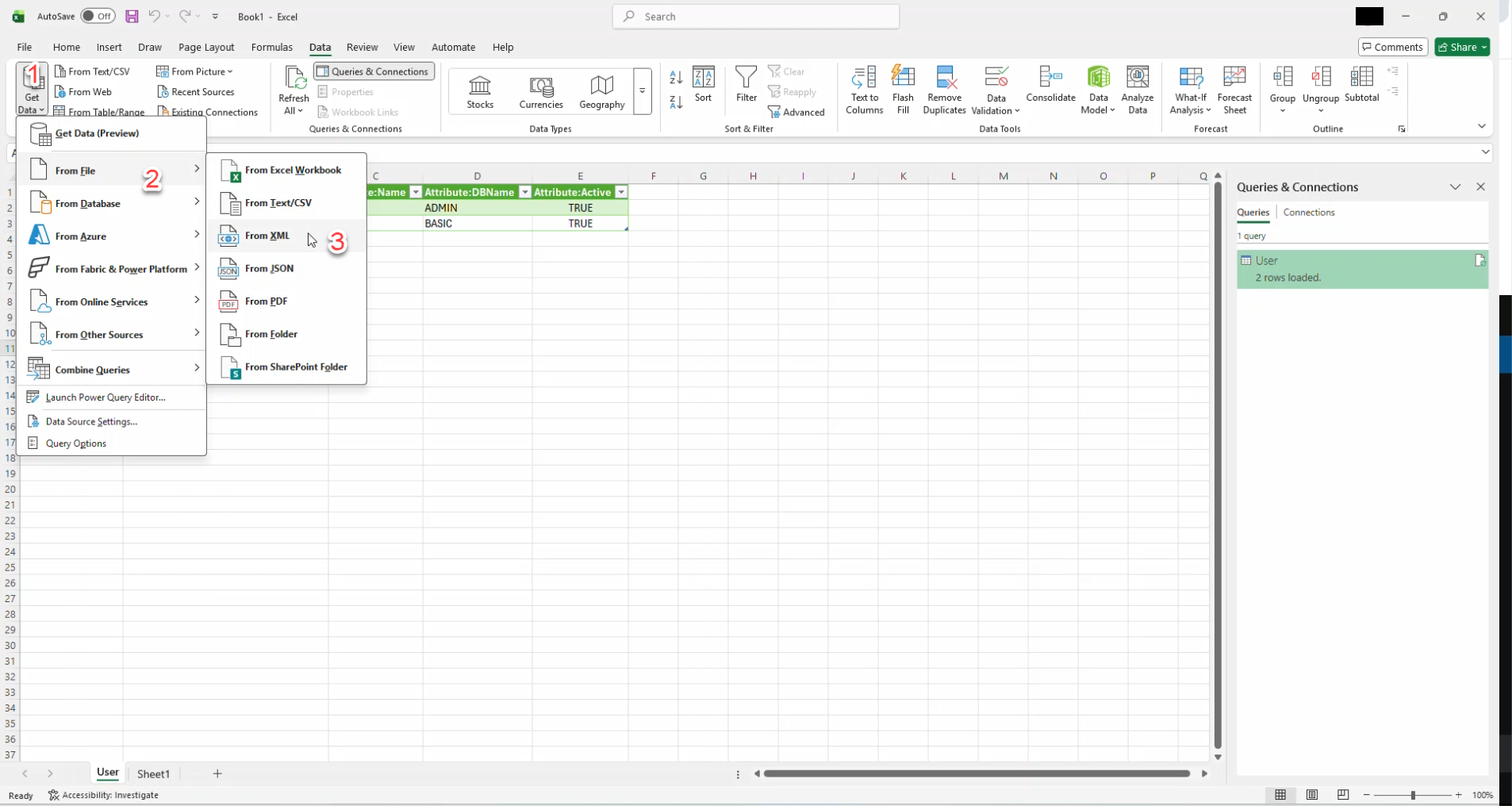
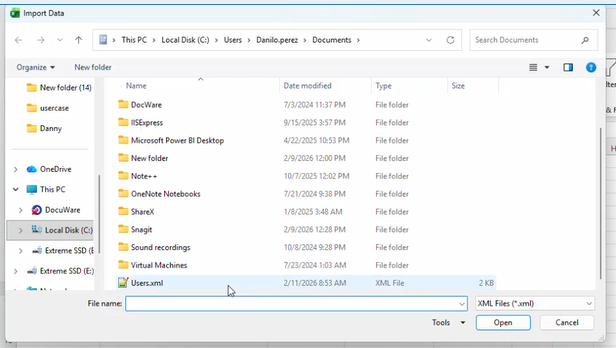
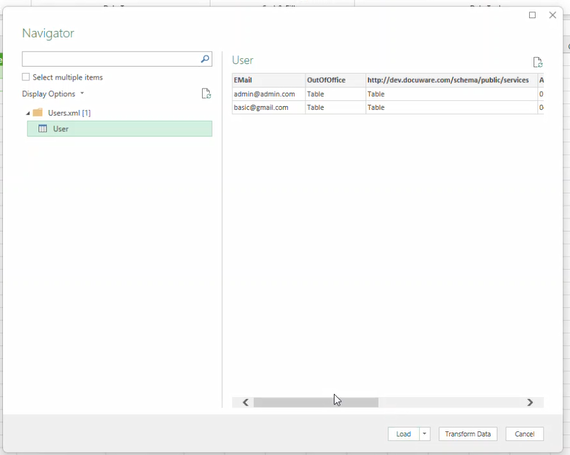
- Once the file is downloaded, open Excel and open the file as an XML table to view all active and inactive users.

For DocuWare versions 7.11 and above:
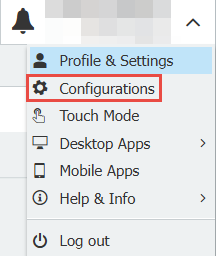
1. Open the Configurations page via the dropdown menu on the upper right corner.
2. Open the User Management tool

3. Select the Export users as CSV option.

4. After selecting Exporting Users, the CSV file will download to your computer.

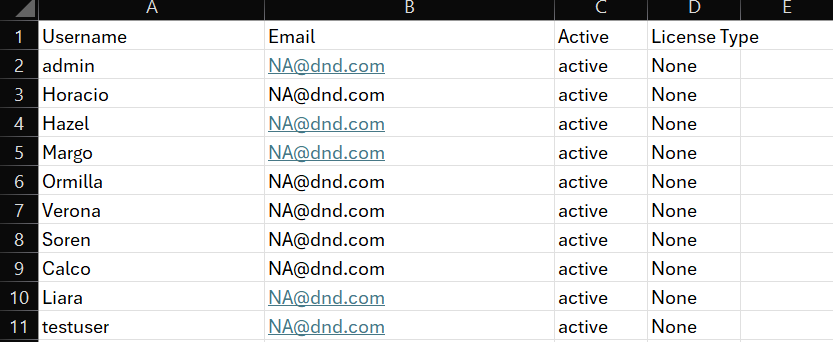
5. Open the Excel spreadsheet and you can view all active and inactive users.
KBA is applicable for both Cloud & On-premise Organizations.
Thank you this was such a paint point to manage.
It would really help us manage the many different users in different sites / countries.
Thanks!